IPTV Stream
Home / Download
IPTV Stream Download & Installation
Install the IPTV Stream player on any device and start streaming in minutes. Step-by-step guides with real screenshots below.
Smart TV
Samsung Tizen / LG webOS
Samsung, LG, Sony — install the IPTV Stream player from the app store
Fire TV Stick
Downloader code
Amazon Fire Stick & Fire TV Cube — Downloader code method
Android TV
APK direct
Android TV boxes & Nvidia Shield — APK install
iOS / Android
App Store / Play Store
Phones & tablets — the IPTV Stream player from App Store / Play Store
Samsung Smart TV (Tizen)
Install on Samsung Smart TV
Simple and fast — install the IPTV Stream player directly from the official Samsung Apps Store. Works on Tizen 2.3 and newer (2015+ models).
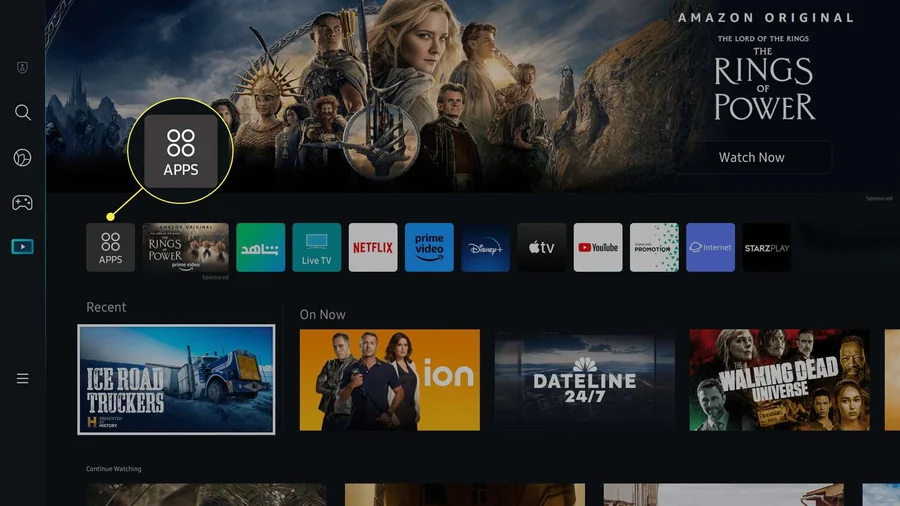
Open Samsung Apps
From your Samsung TV home screen, scroll to the Apps / Samsung Apps icon and open it.
Search "IPTV Stream"
Open the search icon (magnifying glass) and type IPTV Stream or IPTV Stream TV. Select the app from the results.
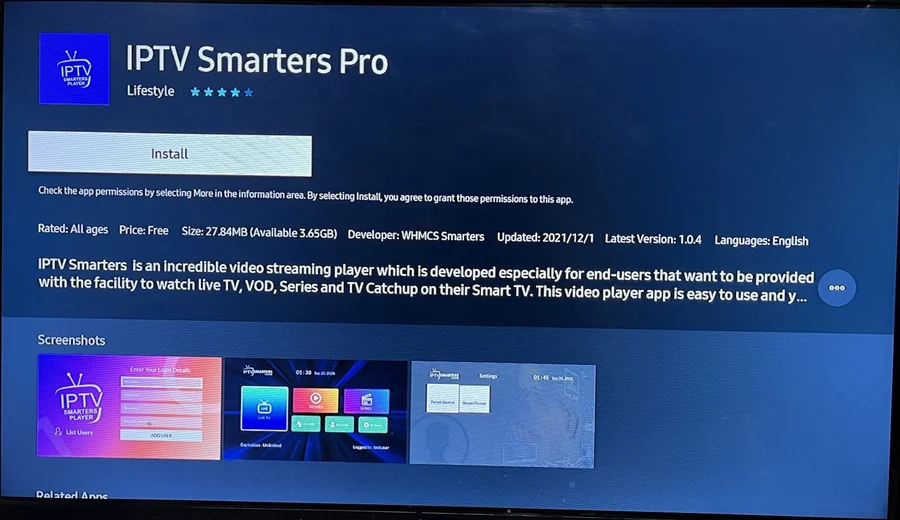
Install & open
Click Install — the app is free and takes about 20 MB. Then open it from your home screen.
Add your subscription
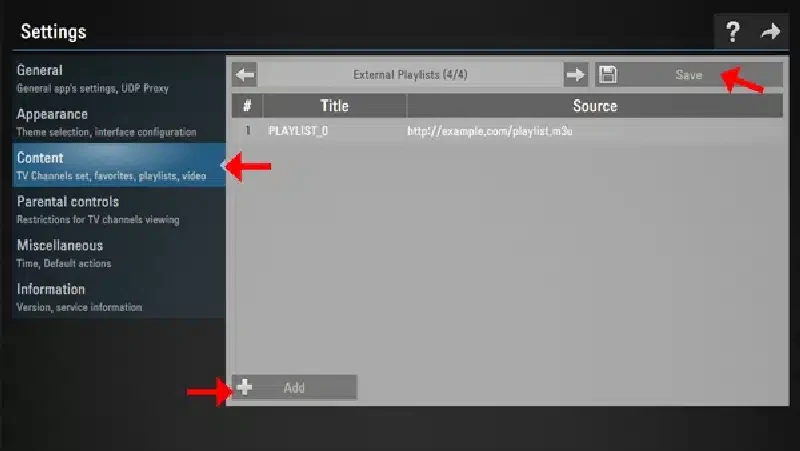
Open Settings → Playlist → External Playlist, paste the M3U URL from your confirmation email and tap Save. Open TV Channels to start watching.
Fire TV Stick & Android
Install on Firestick & Android
Use the Downloader app method — no computer needed. Works on every Firestick from 2016 onward and all Android devices.
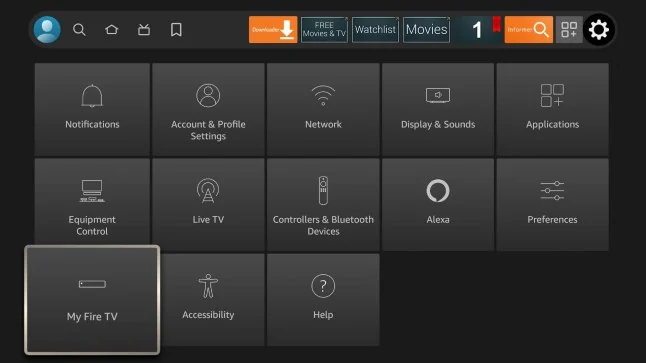
Open Fire TV Settings → My Fire TV
From the Fire TV home screen, scroll to Settings (gear icon on the right). Scroll down and select My Fire TV.
Open Developer Options
Inside My Fire TV, select Developer options. If missing, go to About and tap your device name 7 times to reveal it.
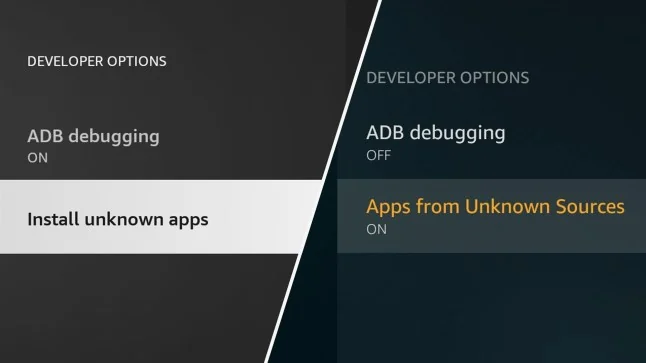
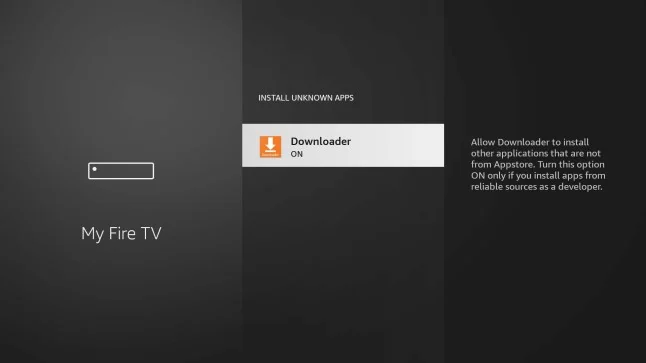
Select Install unknown apps
In Developer options, select Install unknown apps (or Apps from Unknown Sources on older models).
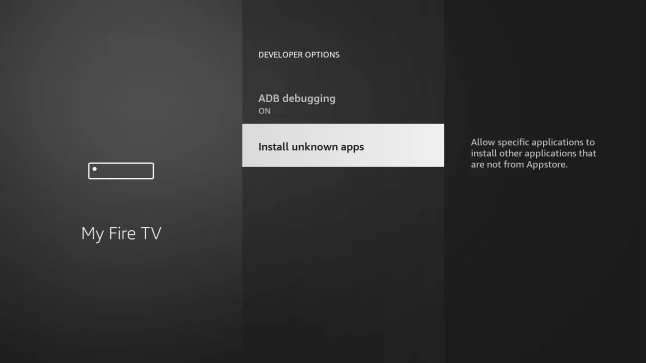
Turn ON Downloader
Select Downloader from the list and toggle it to ON — this allows the app to install APKs. Now open Downloader, enter your code and install IPTV Stream.